Working with groups

Working with groups


A group is a set of similar objects (sales people, all staff, visitors, meeting rooms etc)

A group can only contain objects from the site that it exists on. (off site object inclusion will be implemented in future versions)


This window allows you to add or edit a group description.

You can define a group name and set access permissions for the group.


1 . Group nameGroup name

Group name

This fields sets the descriptive name for the group.

You should make this name representative of the set of people/assets who will be using this group.

2 . Share pointShare point

Share point

This is the UNC (Network) name of a shared folder that all the objects in the group can use as a file repository.   It is a handy method for quickly transferring files between people in the group.

3 . Select Share PointSelect Share Point

Select Share Point

This allows you to select the folder to use as a share point.

(An object in the group must have network access permissions to the share to be able to view the files).

4 . View Share PointView Share Point

View Share Point

This will open up Windows Explorer to view the contents of the share point that you have selected.   (An object in the group must have network access permissions to the share to be able to view the files).


5 . Active directoryActive directory

Active directory

Active Directory dynamic connections are not yet implemented.


It is envisaged that Active Directory dynamic connections will allow creation, maintenance and descriptions of objects to be maintained and synchronised with the Active Directory structure.

6 . Allowed to view permissionsAllowed to view permissions

Allowed to view permissions

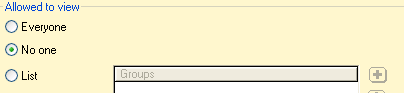
This determines which object or groups are allowed to view the group.


Everyone - all objects from all sites can view this group.   This is initially set to 'everyone' as no objects have been created to set permissions at present.


No one - no objects from any sites can view this group (hidden).   Hidden groups can be useful as a holding place for objects that are no longer used but you are not prepared to delete at this stage (eg casual staff not working at present)


List - defines the groups and objects that can view this group.


Only groups that are local to the site can have view permissions, however objects from any site can have view permissions.  


If the object is from another site, a number appears in the list rather than a name.   This is the object identifier.   To convert this to a name click on Resolve Names from the menu bar.

7 . Allowed to administer permissionsAllowed to administer permissions

Allowed to administer permissions

This is a list of objects that are allowed to add, change, or delete objects within this group from the StaffCal client.

An example of this might be a receptionist who is trusted to look after the maintenance of objects within a group (for example: the executives group) rather than another staff member.


If the object allowed to administer is from a another site, a number appears in the list rather than a name.   This is the object identifier.   To convert this to a name, click on Resolve Names from the menu bar.

8 . Resolve namesResolve names

Resolve names

If an object in a permissions list is from another site, you will only see the objects identifier, which is a 16 digit hexadecimal number.

Use this menu item to resolve that number into a name.   If the remote site has a slow link, the resolve process may take some time.


Created with DrExplain